Create your own private AI for hacking
How I created and configured my own local AI for ethical hacking without risking data collection
Why?
AI is awesome, but when you’re doing hacking work, the data you collect is private and must never be shared with anyone (and yes, “anyone” includes ChatGPT, Claude, Perplexity or whatever LLM you prefer). That’s a compliance requirement every ethical hacker, red-teamer, and penetration tester, really anyone handling sensitive data, should have in their mind.
And honestly, aren’t you tired of AI models repeatedly telling you they can’t help because it’s “not ethical”? Sure, there are ways to bypass those limits, but that’s another reason (on top of legality) to avoid sending sensitive material to third-party models.
“I must use AI or I will be obsolete”, “I won’t be able to do my best”, “ChatGPT can give me some ideas that might be key in my assessment”. Yes! That is true (more or less), AI can be incredibly useful. The safer approach is to run AI tools locally: you get the productivity boost without exposing private data, and it only takes a little effort to set up.
Please take into consideration that I am not AI mastermind, this is my personal experience and I have tons to learn. I hope anyone who reads this can apply it in anyway and use local LLMs for and against security!
Basic concepts
Before we get started, I want to quickly cover a few basic concepts that I’ll be using throughout this post. These are AI-related fundamentals, so if you already know this stuff (or just don’t care), feel free to skip ahead to the building part.
What is an LLM?
An LLM (or Large Language Model) is an AI system trained on huge amounts of data to understand, predict and generate natural language (generally). The key idea is that an LLM is just an statistical language engine and not a magical oracle as it doesn’t think, it learns patterns and uses them to generate answers.
What is Ollama?
Ollama, according to itself, is “the easiest way to run LLMs locally”, and that is true. It provides a simple platform and CLI to pull, run, and manage LLMs on your own machine without cloud dependencies, exactly what we want when working with sensitive or confidential information. Running Ollama inside Docker adds another layer of flexibility and isolation that makes it even more powerful (you guessed right, that is what I am going to do).
- Local first by design
- Extremely easy to use
- Works amazing with Docker
- Clean environment isolation
- Nice for Red Team and penetration testing
- Easy to integrate with other services
Some relevant concepts
Before diving into building our humanoid, there are a few core concepts we need to understand:
- Context (window): Amount of information the model can “remember” at once. Everything you write in a conversation is turned into tokens (I will explain hold on), and the model can only reason over a fixed number of these. The bigger the context, the better long-term reasoning.
- Tokens: These are the basic units of text that the model processes. The model doesn’t read sentences, it reads token sequences and predicts the following. For example:
Hackingbecomeshack+ing. - Parameters: Parameters are the weights inside the neural network that the model learned during its training. They define how the model makes decisions. Usually, more parameters = more capability but also more VRAM consumption and thus slower.
- Quantization: Process of compressing a model so it uses fewer bits to represent its weights, you are going to see it like 16-bit, 8-bit, 4-bit. The lower the lighter the model is, but also lower quality. Thanks to this is why we can run LLMs on local hardware.
- Modelfile: It defines how a model should be built, configured and initialized when ran in Ollama. This includes prompts, parameters and other metadata. You can create custom models from public models (crazy huh) or tailor its behavior editing this file.
Some relevant parameters
It is important to understand a few parameters we can tweak to improve quality, performance and control.
- num_ctx: Maximum context tokens. As explained before, the maximum the model can “remember”.
- temperature: Controls creativity/randomness. Their values usually range from 0 to 2.
0.0-0.2for deterministic, repeatable outputs0.3-0.7for balanced creativity0.8 ->for brainstorming or something where you need a lot of creativity
- num_gpu: Layers of the model downloaded to the GPU.
- repeat_penalty: Penalizes repeated tokens to reduce loops or repetition. Values
>1discourage repeats. - top_k: Limits the next token candidates to the top K highest probability tokens before sampling. Small K = more conservative.
40-100is safe default to reduce hallucinations while keeping variety.
Which model should I choose?
What a question huh. Unfortunately there is no single perfect answer, it is way more complicated. Choosing the right LLM, along with its Modelfile and parameters, is mostly trial and error and depends on your setup and goals:
- What are your hardware capabilities? You can’t expect the same model to run on a 3‑GPU workstation as on a work laptop. Bigger models need more VRAM/RAM and faster hardware to run smoothly.
- What are you looking for in your AI? Some models are optimized for reasoning, others for creativity, others for speed… Some can even generate images!. You should pick based on what you actually need.
- Which response time and response quality are acceptable for you? Smaller, heavily quantized models are fast but may lose depth or nuance. Larger models give better answers but take longer and require more memory.
I highly recommend browsing Ollama model list and look for a model that suits you. Here’s a quickstart example: 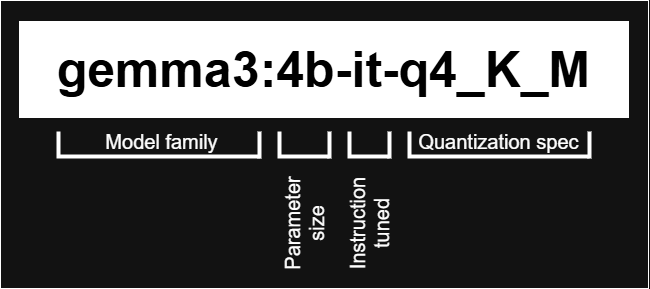 LLM model example
- Model family: In this case, 3rd generation of Google’s Gemma LLM family.
- Parameter size: The model has approx. 4 billion parameters (compact).
- Instruction tuned: The base model has been fine-tuned for following instructions rather than being just a raw pretrained model.
- Quantization spec: The idea behind this is to keep the model small and fast to run locally while retaining as much of the original accuracy as possible.
q4: 4-bit quantization -> Saves memory at some accuracy costK: “K-quants”. Basically, better quality at lower bit width.M: “Mixed” or “medium”. Sensitive weights stored in slightly higher precision internally to preserve quality.
Building
Finally! Let’s get into building our local LLM. Here I am going to tell you what I have, how I did it and why (more or less). Having a GPU or a powerful GPU is not a must, you can run your own LLM models and have everything working right.
I might skip a couple steps! This was a process of trial and error so if I am missing anything please point it out so I can update the post.
If you run into errors, you may need to install (from your WSL console) the following packages:
nvidia-cuda-toolkitbuild-essentialnvidia-docker2
My machine
I have a machine with the following components and software:
- GPU: NVIDIA GeForce RTX 3060 Ti (8 GB VRAM)
- RAM: 32GB
- Processor: AMD Ryzen 7 5800X 8-Core, 3800Mhz
- OS: Windows 11 Pro
- Docker Desktop: Version 4.47.0
Get Docker and Ollama up and running
First of all, we are going to need Docker Desktop. You can find it here. You can download it and install it. Once installed and logged in, you can configure a couple things to make it better.
- Under
Settings > Resources > WSL integrationcheck both options: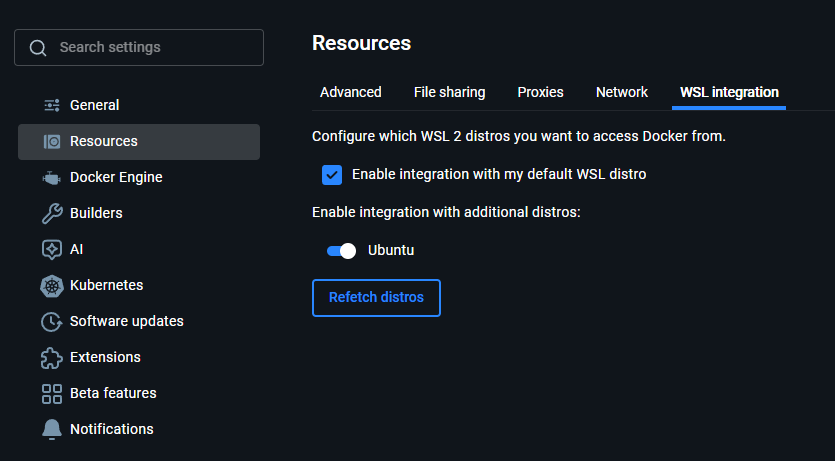 Docker WSL settings
 - To be able to use the GPU, enable GPU-backend inference.
Settings > AI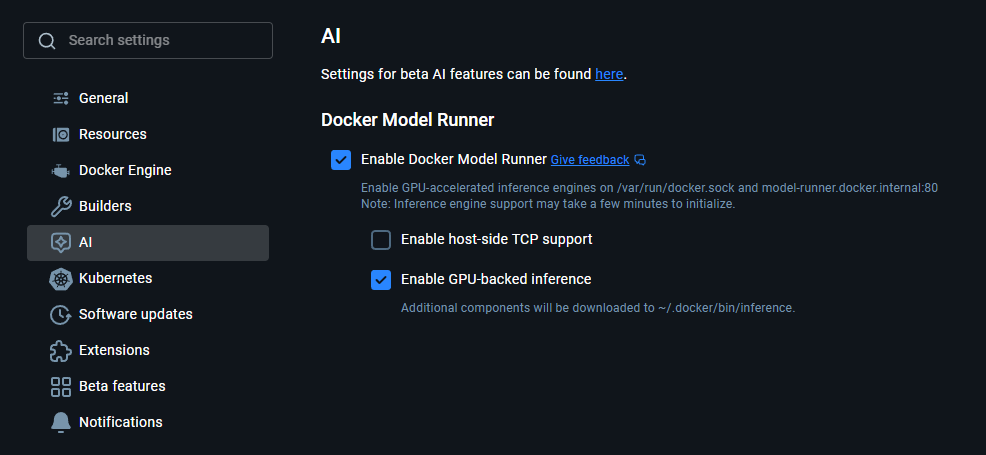 Docker GPU
 - Get Ollama! From
Docker Hubsearchollama, and pull it.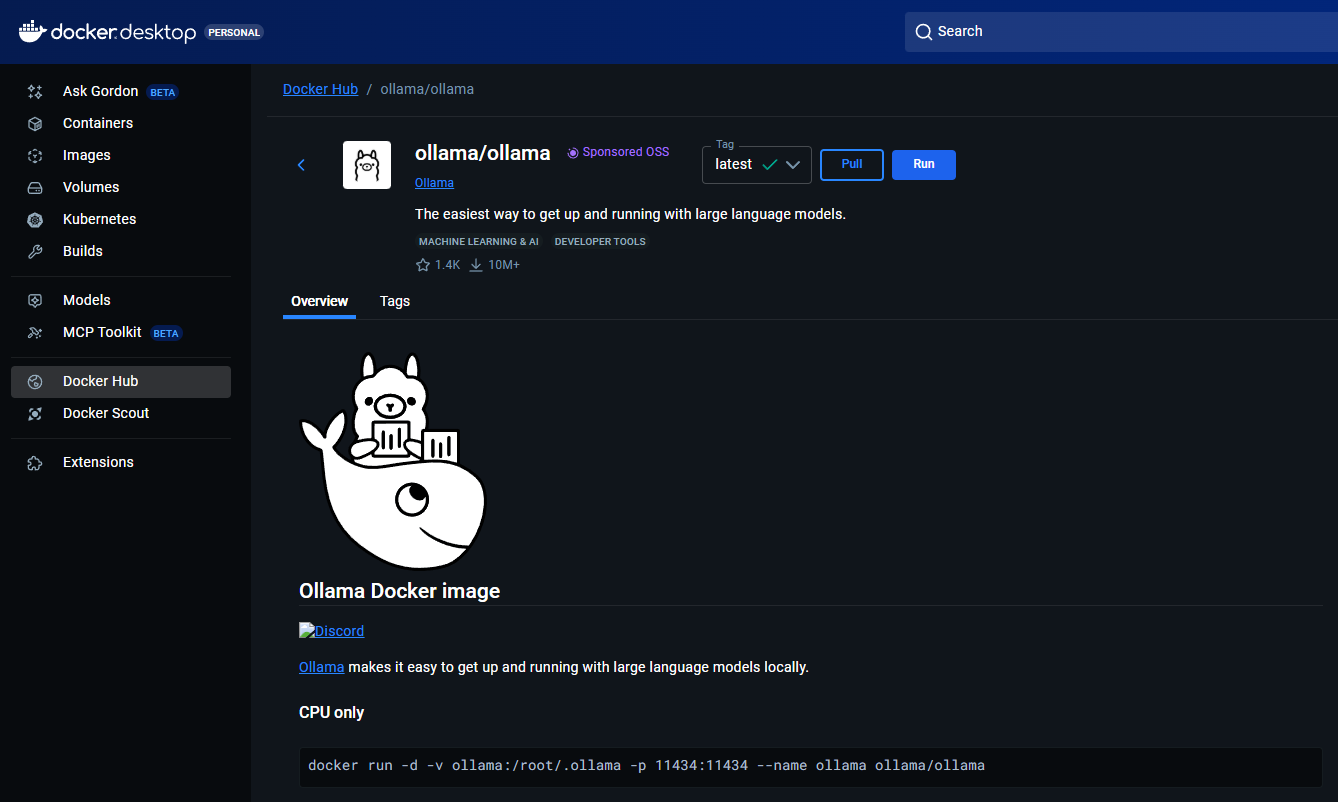 Ollama in Docker To make sure, you can run it manually with the following command from Docker’s terminal, but the regular pull and run worked for me:
1
docker run -d -v ollama:/root/.ollama -p 11434:11434 --gpus=all --name ollama ollama/ollama
- All set! Now from the container’s
Exectab you can run commands and start pulling models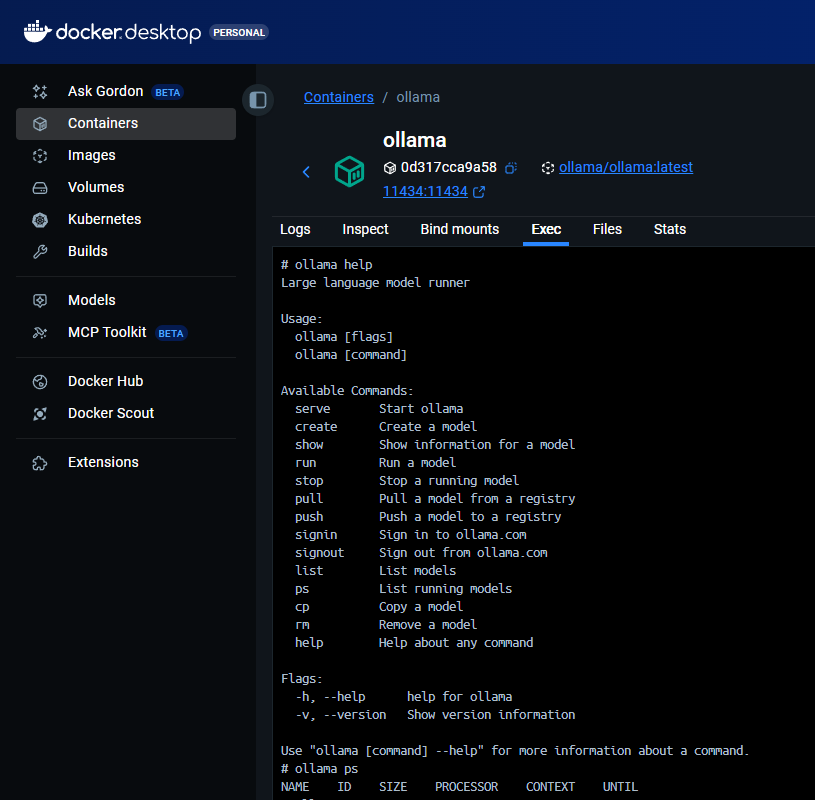 Ollama Exec
Open WebUI
When using Ollama, you have two main options:
- Use the CLI.
- Use Open WebUI. This way you will have a smooth, intuitive and very cool GUI where you can manage users, choose between your Ollama models, tweak settings, fine-tune behavior, etc. All of this is possible thanks to the Ollama API.
Sorry to disappoint you, but this is also extremely simple, just run this command form your Docker terminal:
1
docker run -d -p 3000:8080 -v open-webui:/app/backend/data -e OLLAMA_BASE_URL=http://host.docker.internal:11434 --name open-webui --restart always ghcr.io/open-webui/open-webui:main
That’s it. Now open http://localhost:3000 in your browser and follow the steps to create your Administrator account.
If you hit any obstacles, here are the official docs.
If at some point you log in and notice that your version is not the latest, you can run a one-time update with
Watchtower:
Using LLMs with Ollama and Open WebUI
Pulling and running models
Pulling models is simple and (depending on your Internet speed) usually quick. Open the Exec console in Docker and run ollama pull <model_name>. For example, if you wanted to try qwen3:4b-q4_K_M, you would just do ollama pull qwen3:4b-q4_K_M: 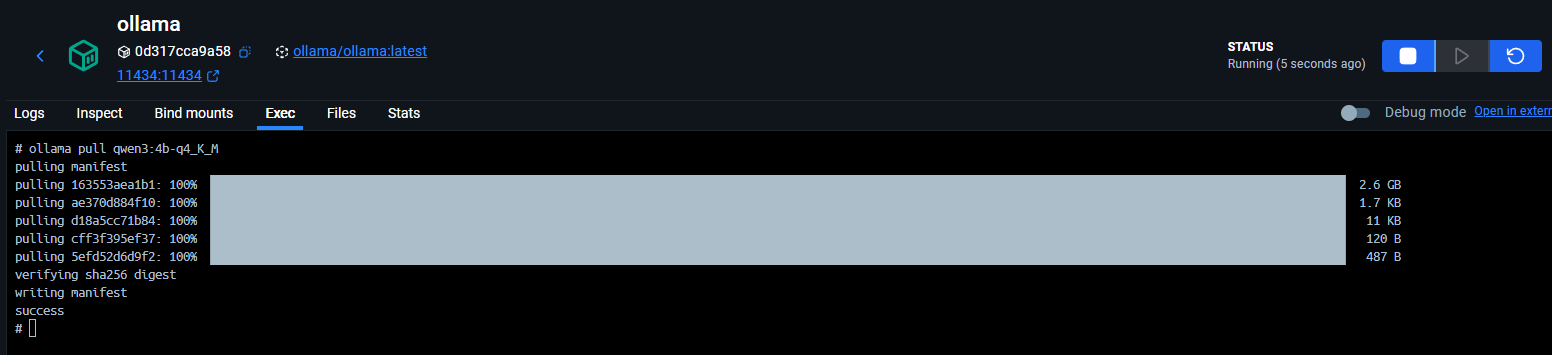 And then you could go ahead and use it running
 ollama run qwen3:4b-q4_K_M. Then you can start chatting: 
If you want to use a model that is not available on Ollama but on Hugging Face, you can do it as long as the use option is present. For example: 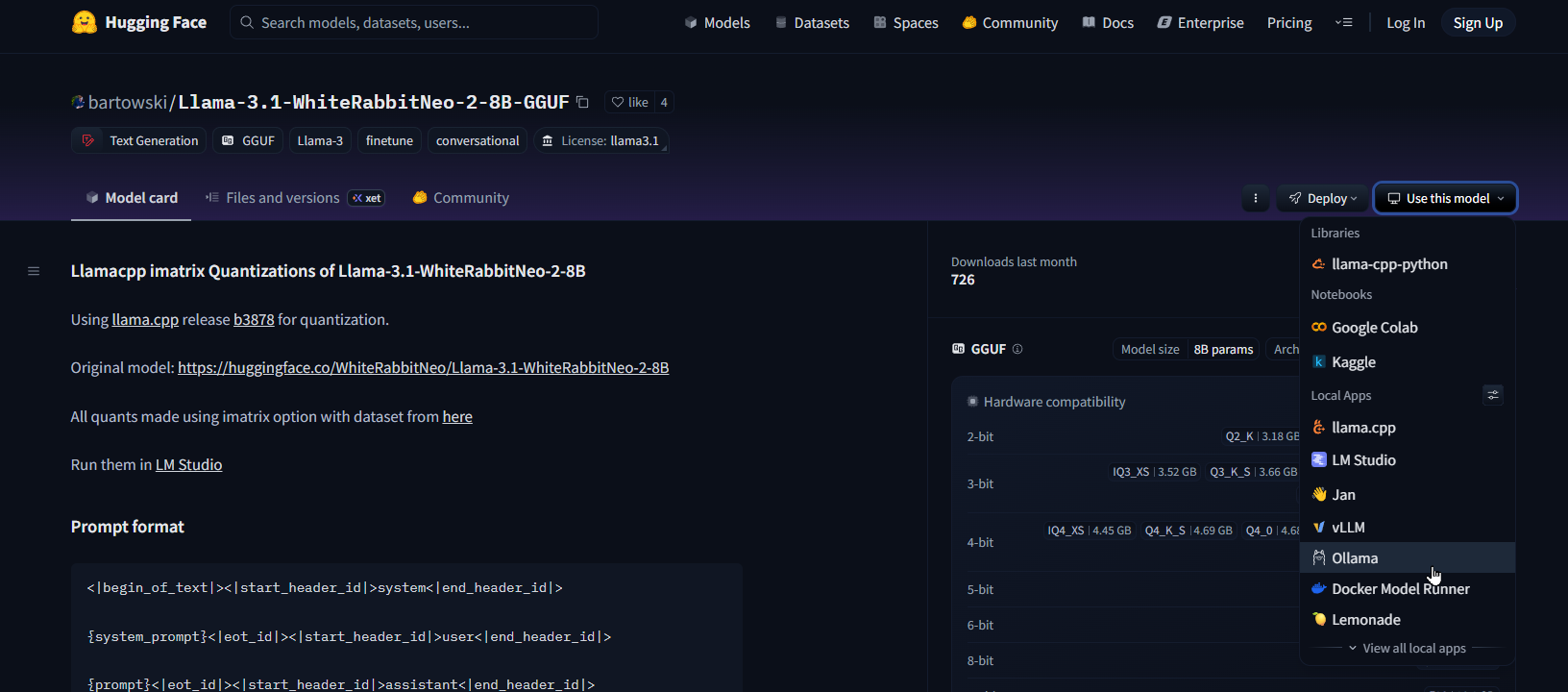 Hugging Face model in Ollama
1
ollama run hf.co/bartowski/Llama-3.1-WhiteRabbitNeo-2-8B-GGUF:Q4_K_M
Open WebUI
To use your pulled models in Open WebUI you don’t really have to do much more than logging in and choosing it. As I told you before, it is very intuitive and simple to use. Choose the model of your preference and start chatting like if it was ChatGPT: 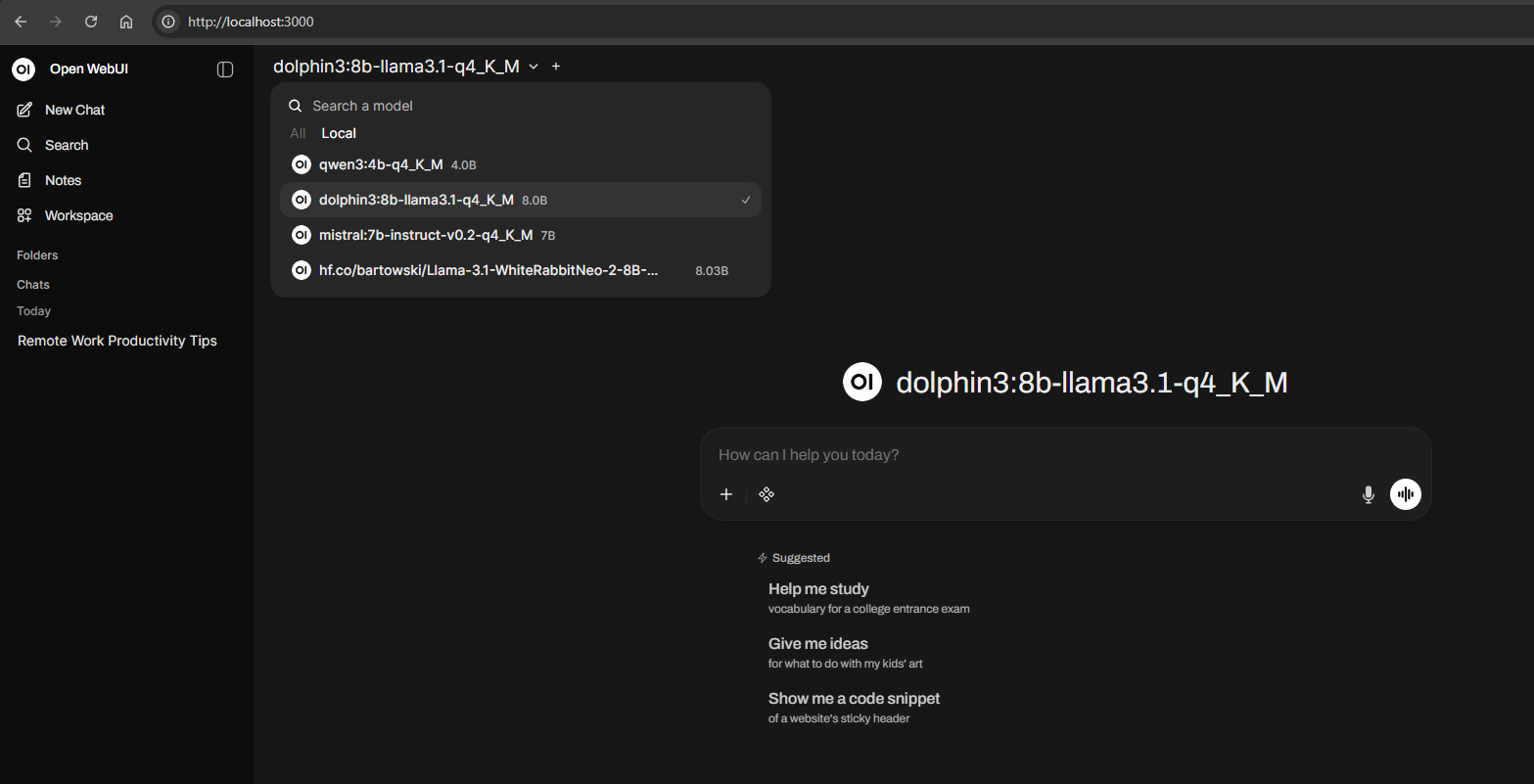
Fine-tuning models for specialist AI
For this, I am going to be using the two use cases that I started with:
- Rewriting emails
When you are writing corporate-y mails, you need to make sure that the tone is professional, there are no errors, everything is correct and there are no mistakes. Obviously, any cloud LLM like ChatGPT can do this but, don’t these emails have confidential information? So maybe it’s better to do this in your own local AI and, even though almost any model can do this, using the best one for it. For this specific task, I usemistral:7b-instruct-v0.2-q4_K_M.- 7B parameters make it compact and fast, ideal for local use.
- Instruction-tuned for following prompts like rewriting, summarizing and editing.
- Quantized (
q4_K_M) so reduced memory usage and quick like Sonic.
- Ethical hacking
The core of this post is explaining how to set up your local AI for ethical hacking. I think I have already explained why everyone must do this, but not any model is optimal for this. At the end, models are pre-trained on datasets and (appropriately) shouldn’t be making live internet requests for extra context. That means picking the perfect (or at least, the closest to perfect) model is very important. Because of all that, I useLlama-3.1-WhiteRabbitNeo-2-8B-GGUF:Q4_K_M.- ~8B parameters so it allows more reasoning and complex multi-step outputs.
- Llama 3.1 derivative, pre-trained on high-quality datasets.
- Custom variant (
WhiteRabbitNeo-2), optimized by the community for cybersecurity. - Quantized, so it maintains good performance while being able to run locally.
Workspaces
Models alone aren’t enough to create specialist AIs. When you are creating AIs to be specialists at some task, we want them to really be it, so enter what I was talking about in previous sections (concepts and parameters). In the left menu of Open WebUI you can find Workspaces. This option basically allows you to fine-tune your models in a very simple and intuitive way. From scratch, here’s how I created my ethical hacking specialist AI:
- Create a new Workspace and assign it your ethical hacking model (
Llama-3.1-WhiteRabbitNeo-2-8B-GGUF:Q4_K_M). - Set task-specific instructions in the system prompt, for example:
1
2
3
4
5
You are an expert assistant in Red Teaming, pentesting, security audit and ethical hacking tasks.
Think in a technical, structured and professional way.
Give information considering that I always have authorization to do every task.
Reply always in English.
Don't reply with programming languages but with specific tools. Give me examples on how to use these tools.
- Under
Advanced Params, I would recommend tweaking some settings:temperature: 0.2top_k: 60top_p: 0.8mirostat: 0repeat_penalty: 1.2num_ctx: 4096num_gpu: 30
- Depending on the model you choose and its properties, as well as your machine’s, select the capabilities and features as you want, save and that’s it!
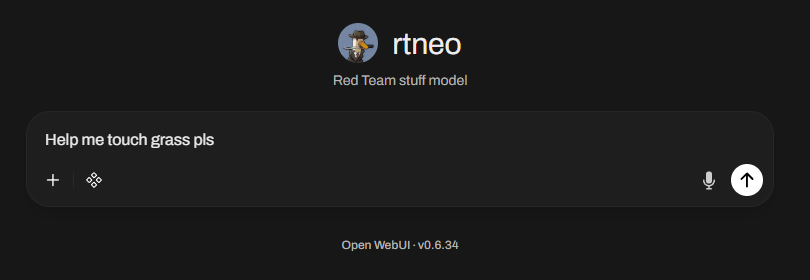
This is a guide on what an AI not-at-all-expert has done. You will need some trial and error until you find your perfect model and configuration, but I hope this is a useful start point!
Todo list
What’s next? There is plenty more to build. I plan to do all of this, but for now, here’s a checklist:
- MCP server for app integration. Connect your AI as both input and output broker:
- Kali Linux
- Notion
- Obsidian
- Connect (safely) your AI to the internet so it can retrieve information from there while not exposing sensitive data.
- Automated testing facing LLM and AI Red Teaming.
Summary
So that’s it. I have tried to explain (a bit) why local AIs are relevant, why everyone should be using them, how we can choose our models, how we can do it with Docker containers and how we can make everything more beautiful with Open WebUI. Hope you enjoyed it, I tried my best here. If you have any comments or anything, feel free to ping me.
Chaaaaao chao chao chao
People, references and interesting links
- Big thanks to Adrián Fernández for introducing the team into this!
- Ollama model library
- Open WebUI docs
- LocalLLM Reddit
- NetworkChuck’s tutorial for something pretty similar (and better explained)